10 min read

In 2026, WordPress remains the dominant content management system, powering millions of enterprise-level websites. However, its popularity continues to attract sophisticated threats, including AI-driven attacks, supply-chain exploits through plugins, and zero-day vulnerabilities. While basic measures like updates and strong passwords form the foundation, professionals managing high-stakes sites need advanced defenses to minimize risks effectively.
This WordPress security checklist focuses exclusively on 10 advanced solutions drawn from proven hardening techniques. These go beyond routine maintenance, requiring careful implementation but delivering substantial protection against modern threats. Following this advanced WordPress security checklist helps safeguard sensitive data, ensure regulatory compliance, and preserve site integrity in an evolving threat landscape.
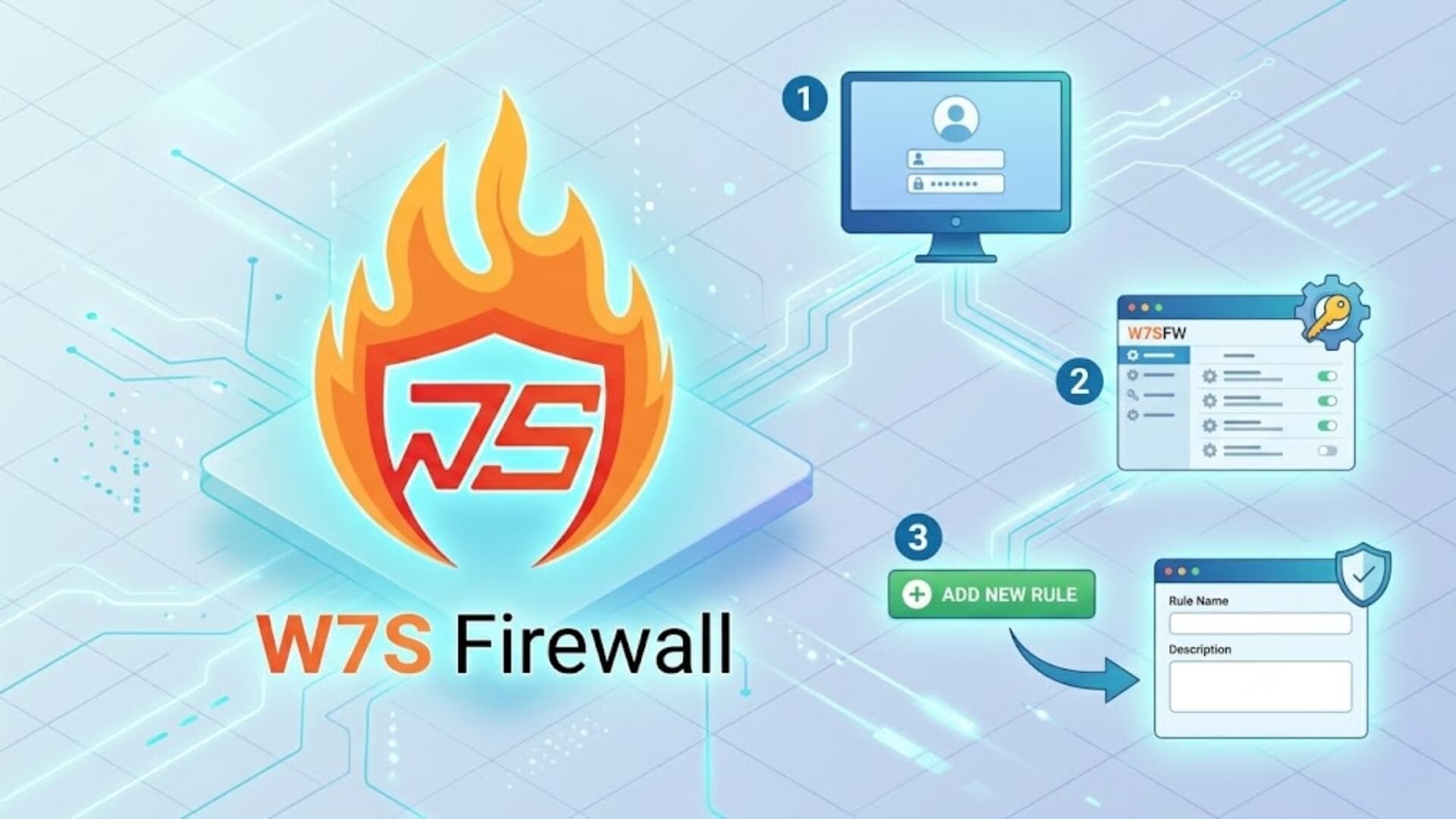
Protect WordPress with W7SFWLink to heading

W7SFW is a dedicated WordPress Firewall built to stop threats before they ever reach your website. Unlike traditional security tools that allow traffic in and then attempt to filter malicious behavior, W7SFW applies a strict “Blacklist All” security model combined with intelligent default rules and active whitelisting. Every request is blocked by default, and only verified, legitimate traffic is allowed to access your system.
This dramatically reduces the attack surface and prevents unauthorized access at the earliest possible stage.
By enforcing full request-level control, W7SFW effectively mitigates brute force attempts, botnet traffic, automated exploitation scripts, and emerging attack vectors that typically bypass conventional plugins.
Getting started is remarkably simple. You only need to register an account, choose the service plan that fits your needs, and follow the step-by-step instructions provided. There is no complex installation process, no server configuration, and no technical expertise required. The entire setup is designed to be straightforward, allowing you to activate strong WordPress protection within minutes.
>>> Activate W7SFW today and secure your WordPress website with powerful, proactive protection.
Change the default database prefixLink to heading
By default, WordPress uses the wp_ prefix for database tables, making it easier for automated attacks to target your structure via SQL injection attempts.
How to implement:
- Back up your full site and database first.
- Edit wp-config.php and change $table_prefix = 'wp_'; to a unique value, e.g., $table_prefix = 'sec_2026_';.
- Use phpMyAdmin or a tool like WP-CLI to rename all tables (e.g., wp_options becomes sec_2026_options).
- Update references in the database.
This simple obfuscation step significantly reduces scripted attacks scanning for default prefixes.
Use custom /wp-admin and /wp-login.php URLsLink to heading

Default login paths (/wp-admin and /wp-login.php) are well-known entry points for brute-force tools.
Implementation guide:
- Install a lightweight plugin like WPS Hide Login (free and actively maintained).
- In plugin settings, set a new login URL (e.g., /secure-enter-2026).
- Bookmark the new URL — never share it publicly.
For maximum control on Apache servers, edit .htaccess to redirect or rewrite the paths manually. This measure alone drastically cuts automated login probes.
Restrict wp-admin access by IP address (IP whitelisting)Link to heading
Limit dashboard access to trusted IP addresses only, enforcing a zero-trust approach for administrative panels.
Step-by-step:
- Collect static IPs (or VPN exit IPs) for your team.
- In .htaccess (Apache), add:
<IfModule mod_rewrite.c>RewriteEngine OnRewriteCond %{REQUEST_URI} ^(.*)?wp-login\.php(.*)$ [OR]RewriteCond %{REQUEST_URI} ^(.*)?wp-admin$ [OR]RewriteCond %{REQUEST_URI} ^(.*)?wp-admin/ [OR]RewriteCond %{REMOTE_ADDR} !^YOUR.IP.HERE$RewriteRule ^(.*)$ - [R=403,L]</IfModule>
- Replace YOUR.IP.HERE with actual IPs (add multiple lines).
- Test thoroughly — a misconfiguration locks you out.
Combine with dynamic DNS for remote workers. This is one of the strongest controls in any WordPress security checklist for enterprise environments.
Implement multi-factor authentication (MFA) for critical usersLink to heading

While 2FA is standard, MFA adds extra layers (e.g., app + SMS + hardware key) for admins and editors.
Recommended approach:
- Use plugins like miniOrange Two Factor Authentication (premium supports multiple factors per role).
- Enforce for Administrator and Editor roles only.
- Integrate hardware keys (YubiKey) for highest privilege accounts.
In 2026, credential stuffing remains prevalent — MFA dramatically reduces successful account takeovers.
Secure and harden the wp-config.php fileLink to heading
This file holds database credentials and keys - any exposure is catastrophic.
Hardening steps:
- Move wp-config.php one level above web root if your host allows.
- Add to .htaccess:
<files wp-config.php>order allow,denydeny from all</files>
- Set strict file permissions (600) via SFTP.
- Define salts and keys using WordPress's secret-key service.
Regular audits ensure no unintended exposure occurs.
Disable file editing in the dashboardLink to heading

Prevent theme/plugin code edits directly from wp-admin, where compromised admins could insert backdoors.
Quick fix:
-
Add to wp-config.php:
define('DISALLOW_FILE_EDIT', true);
This forces all code changes via SFTP or staging environments - a critical best practice in professional workflows.
Disable directory browsing and PHP error reportingLink to heading
Exposed directories reveal file structures; error messages leak paths and versions.
Implementation:
- In .htaccess, add: Options -Indexes
- In wp-config.php:
ini_set('display_errors', 'Off');define('WP_DEBUG', false);define('WP_DEBUG_DISPLAY', false);
Verify by accessing /wp-includes/ — expect a 403 Forbidden error.
Enable comprehensive security headers (Including CSP)Link to heading

Security headers prevent XSS, clickjacking, and MIME-type attacks.
Key headers to implement (via .htaccess or plugin):
- Header always set Content-Security-Policy "default-src 'self'; script-src 'self' 'unsafe-inline';"
- Header always set X-Frame-Options "SAMEORIGIN"
- Header always set Strict-Transport-Security "max-age=31536000; includeSubDomains"
- Header always set X-Content-Type-Options "nosniff"
Use tools like securityheaders.com to scan and refine. CSP requires tuning but blocks most injection attacks.
Implement rigorous code review, QA processes, and employee trainingLink to heading
Human factors cause many breaches - structured processes mitigate this.
Best practices:
- Require staging → code review → approval before production deployment.
- Use tools like Git for version control.
- Conduct quarterly security training on phishing, safe plugin vetting, and incident response.
Document everything in a company security policy. Regular training reduces risks from insider threats or social engineering.
ConclusionLink to heading
By prioritizing these 10 advanced measures in your WordPress security checklist, you create defense-in-depth that addresses 2026's sophisticated threats. Review and update your setup quarterly, test in staging, and consider professional audits for mission-critical sites. Security is ongoing - staying proactive keeps your WordPress installation resilient and trustworthy.